

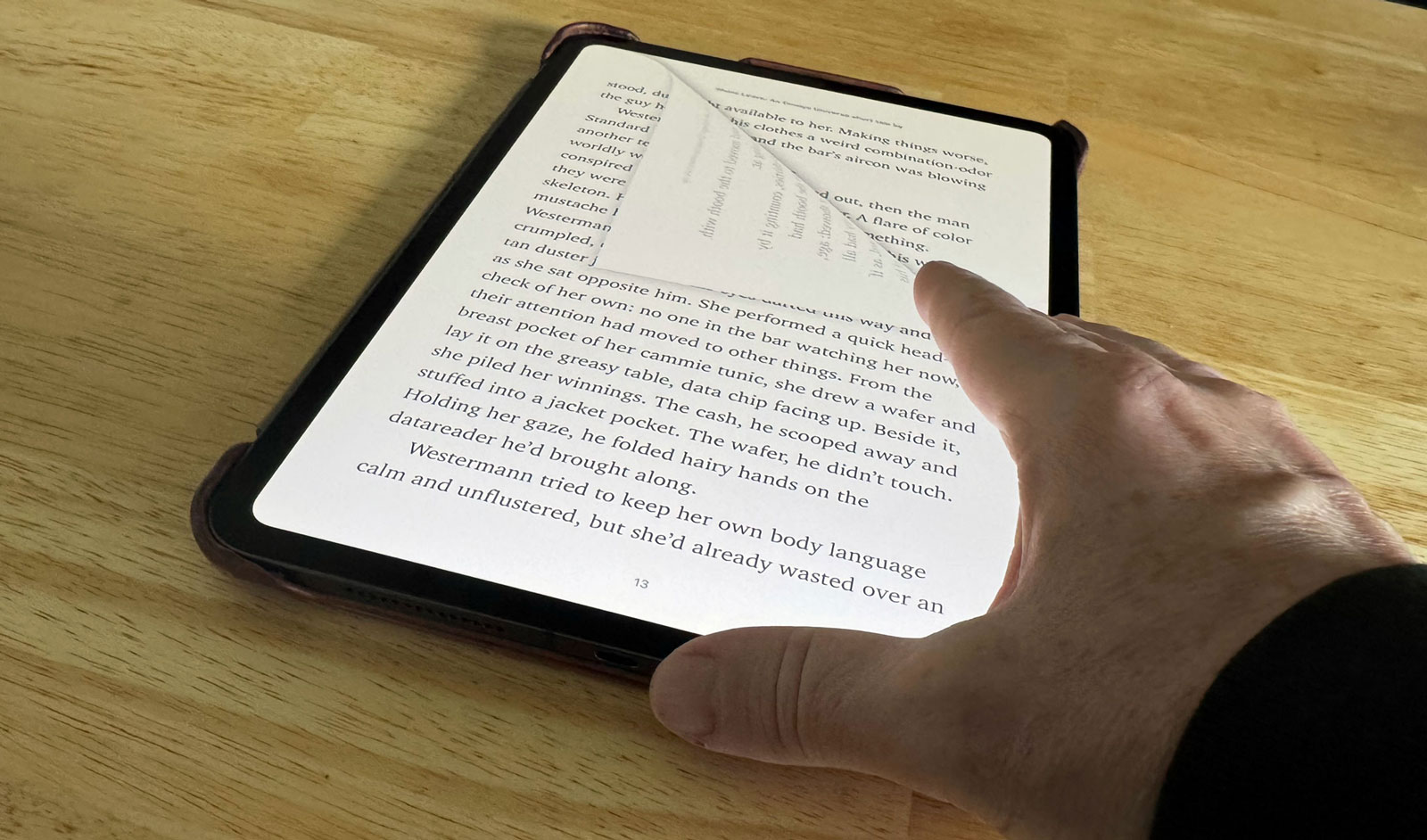
Apple has done something with its iPad that literally no one (not even Apple) is talking about: with iPad and the Books app, the company has recreated the magical feel of reading a physical book in the medium of ebooks. Let’s talk about how, starting with a look at iPad.
iPad Is the Best All Around Ebook Device
I love Apple’s Books app and ecosystem, but it feels like the company is doing that Homer Simpson meme where he vanishes into the bushes. Apple hardly talks about Books any more, and the app and store get no WWDC stage time these days. I don’t recall the last press release from Apple about it, either.
But for all of Apple’s lack of outward caring, reading ebooks on my iPad remains my favorite way to consume them. Here’s why:
First and foremost, you can install all the book ecosystem apps on your iPad. Kobo, Amazon’s Kindle, Barnes & Noble’s Nook, and Apple’s own Books can all live side by side, meaning I can bring all my books with me everywhere I go.
Also, all epubs and PDFs can be opened in the Books app (and in some of the other apps, too), regardless of where they came from. The sole exception would be if platform-specific DRM restrictions have been added to the file.
In other words, the iPad lets me choose my reading experience every time I open a book. I personally find great value in that, especially when I’m choosing Apple’s Books app.
Ode to Books.app
The Books app offers the closest thing to a real-book reading experience on a device, in my opinion. While other ebook platforms have largely focused on presenting words on the screen, the company has given its app that particular Apple focus on translating as much of the “book” experience to a screen experience. And it does so by having the app get out of our way.
Let’s start with page numbering. Books gives you just that: page numbers. Not percentages or “locations”—we should take a timeout to mock Amazon’s engineer-first thinking that went into that decision—page numbers. Tap the page once, and you get a more detailed page number that includes the total number of pages in the book. This is how it should be!
Next, there’s Apple’s page-curl effect. It’s beautiful, and absolutely feels like I’m turning a page in the real world. When I’m reading, I tend to start turning the page just before I reach the bottom. I’ll sit there with the page partially turned just waiting for me to finish the motion. I’ve done this my whole life, and when I transitioned to ebooks, I found myself still doing it.
With the Books app, you get the slightest ghost of text on the other side of the page curl—like a real book. Apple’s curl effect is nigh on perfect—I don’t think about it when I’m doing it. It just feels right to me.
How to Enable The Page-Curl Effect in Apple Books
This is so important to me, I’m going to briefly digress to a little how-to because I want you to experience this. Apple foolishly mimicked Kindle’s awful flat page turning a few years ago, and you do have to hand-enable the page-curl effect, which I strongly recommend you do. Here’s how:
Tap the menu button in the bottom right corner of any open book. Then tap Themes Settings, and the Page button shown below.
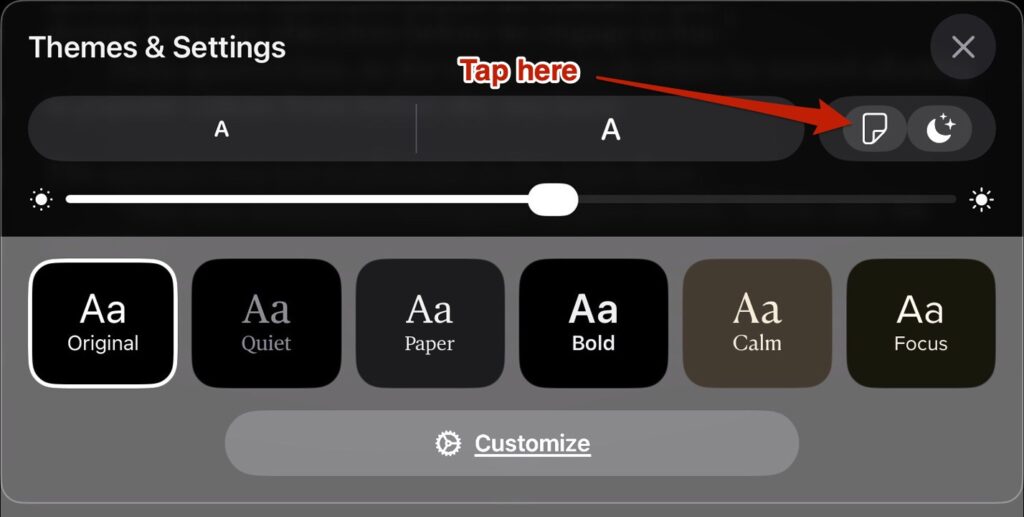
Tap the Page Curl icon.
Then tap the Curl option in the popup window.
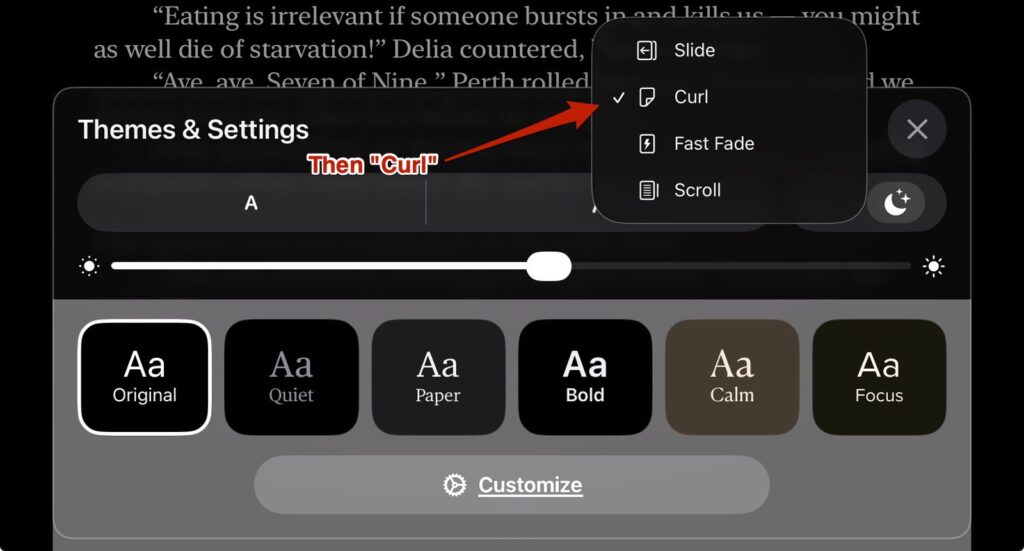
That’s it.
It’s Apple: Fonts Are Important
It’s more than just the curl effect. Apple’s attention to fonts is legendary, and the Books app is no exception. Still in Themes & Settings, you can choose Dark mode (which I recommend when reading in low-light situations). You can also change your font size and the brightness of your display.
And, there are pre-selected themes. There’s a Bold theme (with large letters), a Focus theme with a sans serif font, a Calm theme utilizing a more muted palette, a Quiet theme with softer letters, and a Paper theme to approximate the E Ink displays. More on E Ink below.
But if you tap the Customize option in Themes & Settings, you can get into the nitty gritty. You can specify from more than a dozen individual fonts, make all text bold, change your line, character, and word spacing, adjust your margins, and decide whether your text will be justified or not.
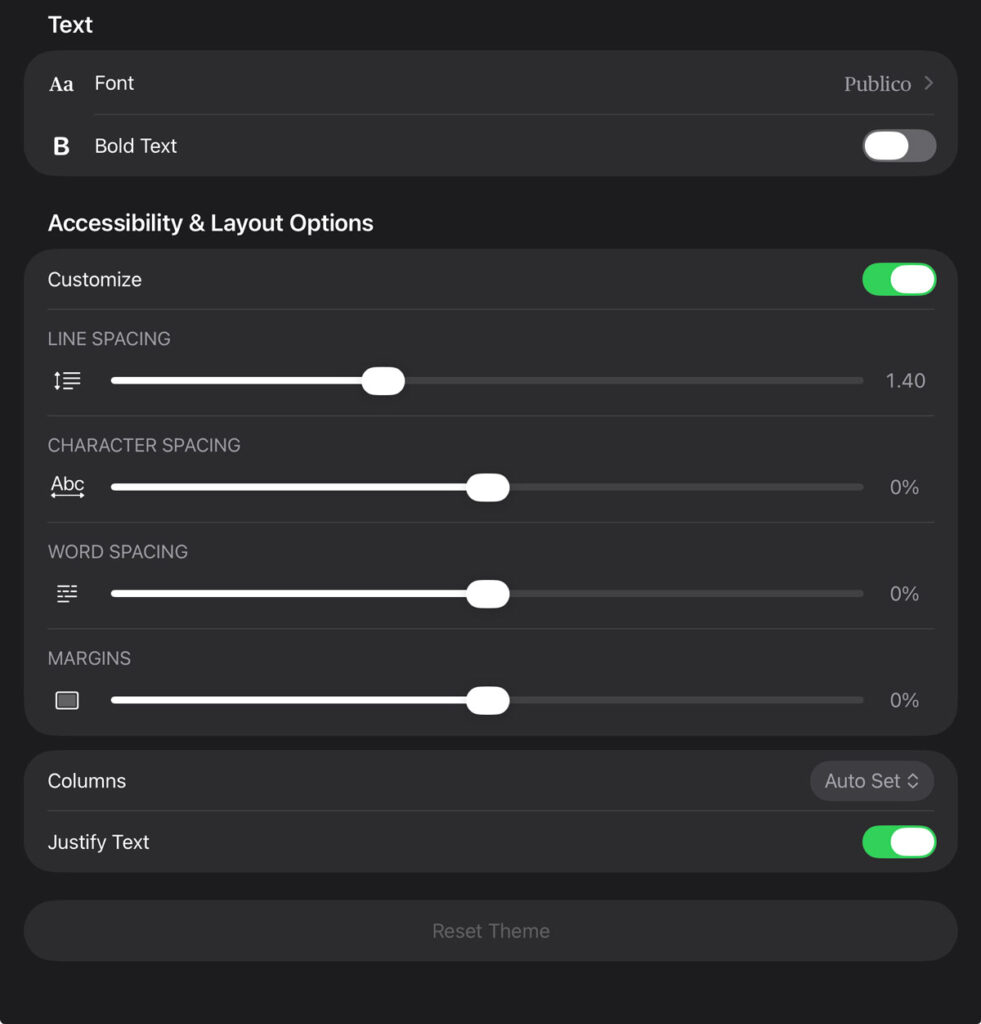
I love that Apple gives us access to this level of control, even though very few users will actually change any of this stuff.
E Ink Is Great, But iPad Is Still King
I think it important to talk about iPad versus E Ink devices, because E Ink is terrific. I’m talking about the kind of displays on the Kindle Paperwhite or Kobo’s Clara and Libra devices (there are others out there, too).
Ebooks on E Ink look luscious, and you can read them in bright sunlight. And those devices aren’t as expensive as iPads. If I was going to read ebooks on anything other than an iPad, it would be on an E Ink device. Fortunately, that Paper theme on iPad’s Books app is quite close (though E Ink still gets the nod).
At the end of the day, I am privileged enough to own an iPad, and on balance, the Books app on my iPad offers the best reading experience. For all the reasons I named above—iPad and the Books app are my preferred reading platform.
It’s kind of weird how much Apple has done with the Books platform, and yet how little outward time and attention they give it. I hope that there will come a day when Apple once again gives this platform the love it deserves.
One Response
Great information. You are right on target about the experience of turning pages when reading a book.